
Selenium VBA Tutorial: Automate a Browser from Excel

How do you automate a browser from Excel VBA? Install SeleniumBasic, the Selenium wrapper for VBA, replace its bundled chromedriver.exe with the ChromeDriver that matches your Chrome version, then add the “Selenium Type Library” reference and drive Chrome with a WebDriver object: Start, Get, FindElementBy..., SendKeys, Click and Quit. The steps and macros are below.
Note (November 2026): Internet Explorer automation no longer works on most PCs, because Microsoft ended support for the IE11 desktop app on Windows 10 on June 15, 2022 (Microsoft lifecycle FAQ). SeleniumBasic’s last release is still v2.0.9.0 from March 2016, so its bundled drivers are old. I updated the setup steps and the Google search example for this, but did not re-run the macros in Excel; treat them as patterns and adjust the selectors to the site you automate.
When it comes to browser automation tasks in Excel VBA like filling a web form, login to a website etc. most of them use Internet explorer by adding a reference to Microsoft Internet controls.
VBA users have been using IE automation from many years and most of them still use it. but there is a problem with Internet explorer! As we all know Internet explorer is the ‘God of all browsers’ - I mean we just use it to download other browsers because of its performance issues. Due to its poor performance automation also would be slow.
Then why not use high performance browsers like chrome or firefox? Yes this post is all about browser automation in VBA using selenium VBA wrapper which enables automating high performance browsers like chrome and firefox with just few lines of code.
What is Selenium
Selenium is a testing framework. Selenium automates browsers. That’s it! What you do with that power is entirely up to you. Primarily, it is for automating web applications for testing purposes, but is certainly not limited to just that. Boring web-based administration tasks can (and should!) also be automated as well. Some good guy has written a .net wrapper for selenium which can be used in VBA and VB.net and that is the wrapper we are going to use in this tutorial.
Prerequisites :
- Basic knowledge of VBA
- Microsoft Excel installed in windows OS - Selenium VBA wrapper is a windows COM library so it works only on windows.
- Selenium VBA wrapper library (SeleniumBasic) - download the latest setup, v2.0.9.0, from its releases page and install it.
- Google Chrome and a matching ChromeDriver (see the next section).
Update ChromeDriver for your Chrome version
SeleniumBasic ships with the chromedriver.exe of 2016, which cannot start a current Chrome. Replace it:
- Find your Chrome version in Chrome at
chrome://settings/help. - Download the ChromeDriver for that version (win64 or win32) from Chrome for Testing.
- Copy
chromedriver.exefrom the zip into the SeleniumBasic folder, replacing the old file. The setup installs to%LOCALAPPDATA%\SeleniumBasicfor your user only, or toC:\Program Files\SeleniumBasic(orProgram Files (x86)) when you install it for all users.
Chrome updates itself every few weeks, so when a macro that used to work stops at bot.Start with a version error, download the matching ChromeDriver again.
Getting started with selenium VBA
1.Open any excel file, go to code editor (Alt + f11) and create a sub.
Public Sub seleniumtutorial()

End Sub
2.Add selenium VBA reference go to tools > references > check ‘Selenium Type Library’ and click ok.
3.Define and start web driver selenium web driver is what controls the browser. syntax : Dim drivername as new WebDriver
Dim bot as new WebDriverThis driver is used to start and automate the browser.
4.Start browser A browser can be started by using start method of webdriver. syntax : driver.Start "browsername", "baseurl" the wrapper accepts “chrome”, “firefox”, “edge”, “opera”, “phantomjs” and “ie”, but its other drivers are as old as the 2016 release, so Chrome with an updated ChromeDriver is the one to use
bot.Start "chrome", "http://google.com"Simple example
Lets say we have to open a website and take screenshot of it. This can be done in just 2 lines of code. open website using Get method and screenshot using TakeScreenshot method
Public Sub seleniumtutorial()
Dim bot As New WebDriver
bot.Start "chrome", "http://google.com"
bot.Get "/"
bot.TakeScreenshot.SaveAs ActiveWorkbook.Path & "\screenshot.jpg"
bot.Quit
'quit method for closing browser instance.
End Sub
Above code is self explanatory, when you run this code a screenshot of website is saved in the folder in which current excel file is present. Too easy right! But who wants a screenshot of google? Ah yes, this simple example is used just to explain the steps in automation. I’ll be explaining few practical situations of automation later in this tutorial.
Adding more functionality
Lets say I’m an SEO analyst, I want to search few words on google and take screenshot of results. List of keywords are in column A of keywords sheet.
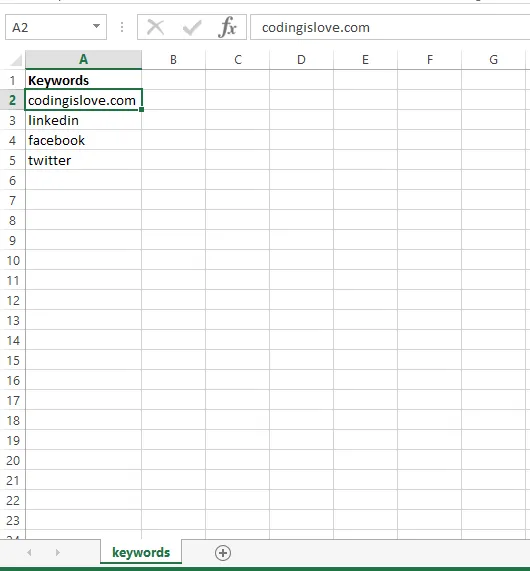
Lets start by adding a sub
Public Sub keywordsearch()

End Sub
1.Define WebDriver, a Range to get range of keywords, and keys, which holds special keys such as Enter.
Dim bot As New WebDriver, rng As Range, keys As New Selenium.keys2.set range to list of cells in column A
Set rng = Range(Worksheets("keywords").Range("A2"), Worksheets("keywords").Range("A2").End(xlDown))Above code makes setting a range dynamic because of End(xlDown) End(xlDown) = next non empty cell in that row (the cell you reach when you press ctrl + down in excel)
3.Start web driver
bot.Start "chrome", "http://google.com"
bot.Window.Maximize
4.Loop through each cell in range, search keyword in google
For Each cell In rng
bot.Get "/"
bot.FindElementByName("q").SendKeys cell.Value & keys.Enter
bot.Wait 2000
bot.TakeScreenshot.SaveAs ActiveWorkbook.Path & "\screenshot_" & cell.Value & ".jpg"
Next
bot.quit
In the above code, First we use For to loop through each cell then get ‘/’ which is homepage, if we need image search then ‘/images’ is used. After loading homepage, find input textbox to enter the search word.
Selenium has many methods to find a html element, Most commonly used methods to find elements are FindElementById, FindElementByName, FindElementByXpath
To find a HTML element, we need a selector. selector may be ID or name or Xpath or class or tag. If we have ID then FindElementById is used, FindElementByName is used if we have name of the element and so on. Finding a selector is simple, just go that webpage > right click on the element for which we need a selector > Inspect element. Prefer ID first, if there is no ID or name then copy xpath by right clicking again on the element.
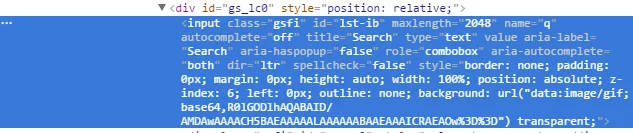
As you can see in the image above, input textbox on google homepage has name attribute so we can use FindElementByName to find element and SendKeys method to type the keyword in textbox.
Google changes its page from time to time, and the search button this macro used to click (the one named “btnG”) is not a reliable selector any more, so instead of clicking a button the macro presses Enter by sending keys.Enter after the keyword. On other sites, find the button the same way as the textbox and call its Click method. Google may also show a consent page or a CAPTCHA to an automated browser; if it does, try the macro on your own site or an internal tool first.
Wait for 2 seconds for search to complete and then take a screenshot using TakeScreenshot method , moving to next cell and finally quit driver using Quit method.
Noteworthy methods :
- All FindElement methods
ExecuteScript- used to run any custom Javascript code.IsElementPresent(Removed now)PageSourcerefreshuntilProxyWindow
These are the commonly used methods in selenium, give it a try.
Wait for element in Selenium VBA
In previous versions of Selenium wrapper, There were few methods like IsElementPresent and WaitForElementPresent which were used to check if element is present, wait till element is available. But these methods are removed now. So How do we wait for elements?
Current methods which are used to identify elements such as FindElementById, FindElementByXPath have an implicit wait of 3 seconds which means - If the element was not found initially then these methods wait for up to 3 seconds to see element becomes available.
If you just want to wait till element becomes available then just increase the implicit wait time of these methods using :
driver.FindElementById("someId", timeout:=10000) 'waits for up to 10 seconds
driver.FindElementById("someId", timeout:=20000) 'waits for up to 20 seconds
Check is element is present in Selenium VBA
If your goal is to just check if element is present or not instead of waiting for the element then it can be done using :
Set myelement = bot.FindElementById("someId", timeout:=0, Raise:=False)
If myelement Is Nothing Then
MsgBox ("no element found")
else
myelement.Click
End If
My Practical use cases of selenium VBA
I had an excel list in my office which contains usernames and passwords of around 200 clients which are used to login to a web admin panel. whenever I need some information, I had to login manually by copying the username & password of that particular client and pasting in the browser and login. So I just wrote some code for autologin, used a shortcut key for that sub. whenever I wanted to login, I just click on the client name and used my shortcut key!
Fetching youtube channel subscribers count. When the data is already in the page’s HTML or comes from an API, you don’t need a browser at all: see HTTP requests in Excel VBA, which is much faster than Selenium.
Automating product purchases, few other automations which need browser involvement exclusively.
Update : Checkout next part of this tutorial Scrape website using Selenium VBA to learn how to scrape website data using selenium VBA and best practises of scraping data in excel.
Wrapping up
This was a quick tutorial, there is lot more that can be done with selenium VBA. you can download official examples file here which contains lot of examples on Selenium VBA automations. have a look at them and start automating!
If you have any questions or feedback, please comment below.